
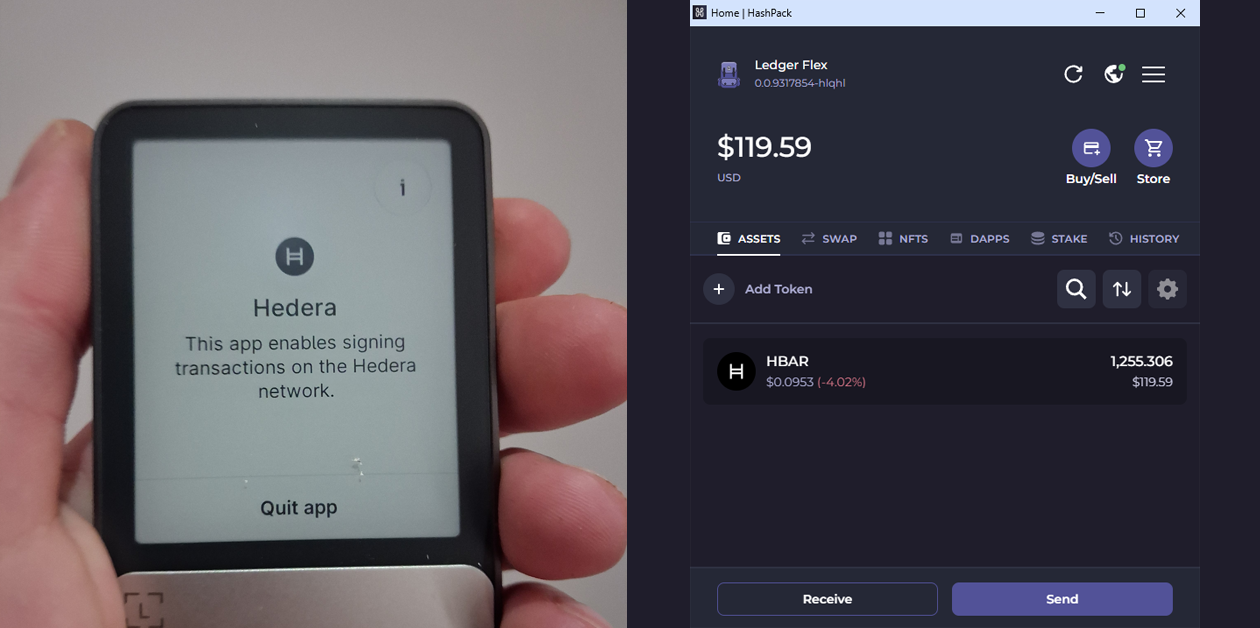

Connecting your Ledger Flex to HashPack lets you securely manage your HBAR while keeping your private keys safely stored on your hardware wallet.
HashPack is one of the most popular wallets in the Hedera ecosystem, making it easy to send, receive, stake, and interact with dApps. When combined with Ledger Flex, you get a strong upgrade in security without sacrificing usability.
If you’re still choosing a wallet, explore our guide to the 7 Best Hedera Hashgraph (HBAR) Wallets to Use in 2026 or check out the best hardware wallets for Hedera Hashgraph (HBAR) to find the right option for your setup.
Follow the steps below to set everything up.
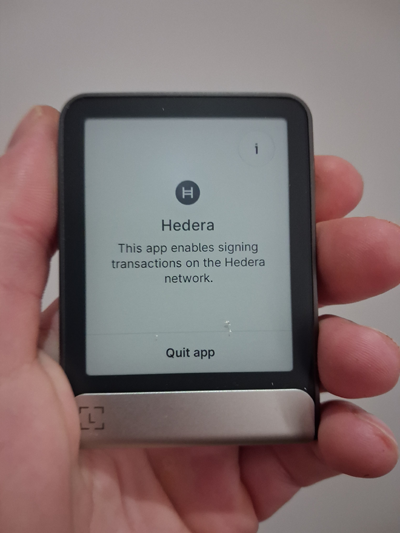
1. Install and open the Hedera app on Ledger Flex – Make sure the Hedera app is installed in Ledger Live, then open it on your device and keep your Ledger Flex connected via USB.
2. Install the HashPack extension – Download and install the HashPack wallet extension for Chrome or another supported browser.
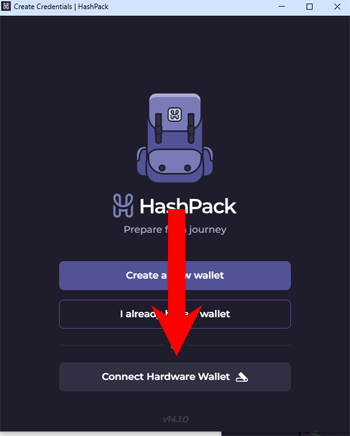
3. Click “Connect Hardware Wallet”
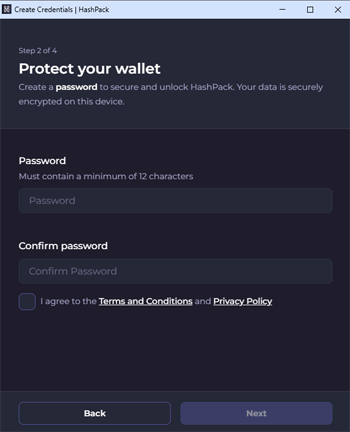
4. Set your wallet password – Create a secure password for your HashPack wallet.
5. Choose Ledger – Select Ledger as your hardware wallet option.
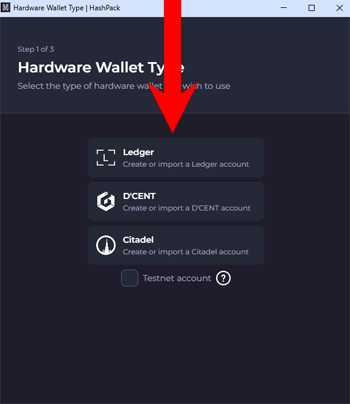
6. Create or import your account – Choose to create a new wallet or import an existing Hedera account if you already use Ledger. Ill choose the second option as I have some HBAR already.
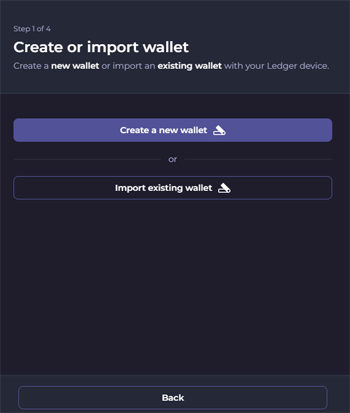
7. Select Connect Ledger.
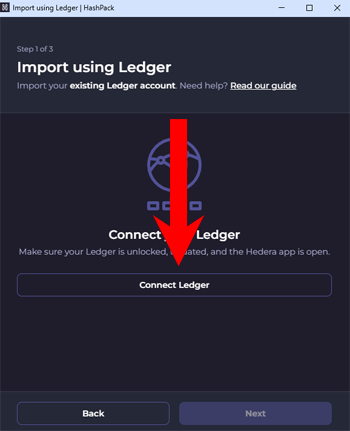
8. Select connection type – Click Connect via USB (used in this tutorial).
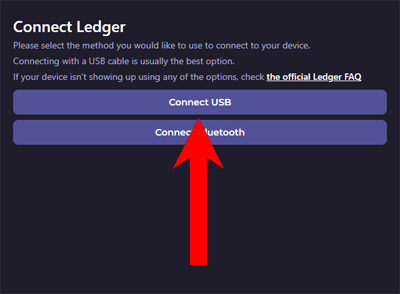
9. Select your device – Choose your Ledger Flex in the pop-up window.
10. Export your public key – Click Get public key to import your wallet addresses.
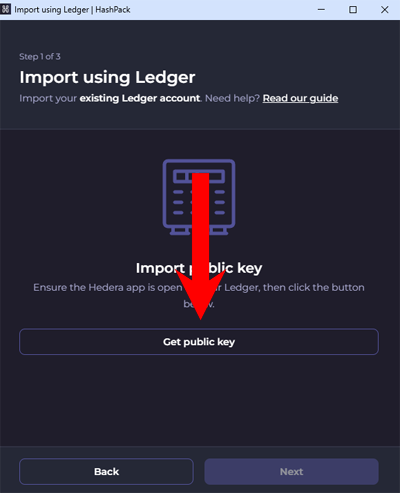
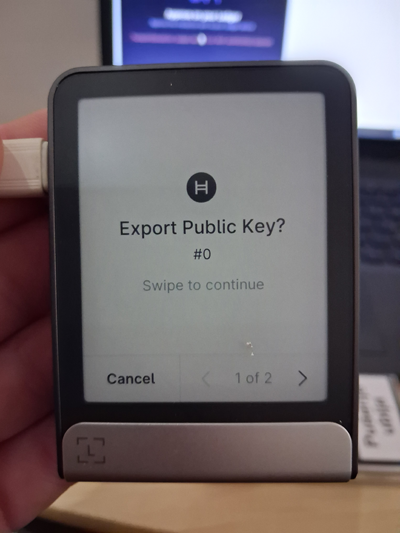
11. Confirm on Ledger Flex – Approve the public key export directly on your device.
12. Name your wallet – Give your wallet a recognizable name in HashPack.
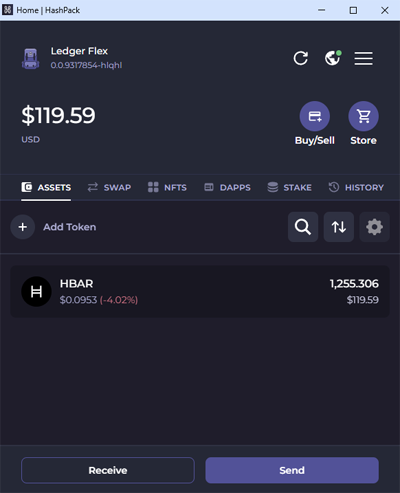
13. You’re all set – You can now securely store, send, and stake HBAR and access the Hedera ecosystem.
Want to explore more setups? Visit our Crypto Wallet Tutorials and Setup Guides to learn how to connect hardware wallets across different ecosystems.
