
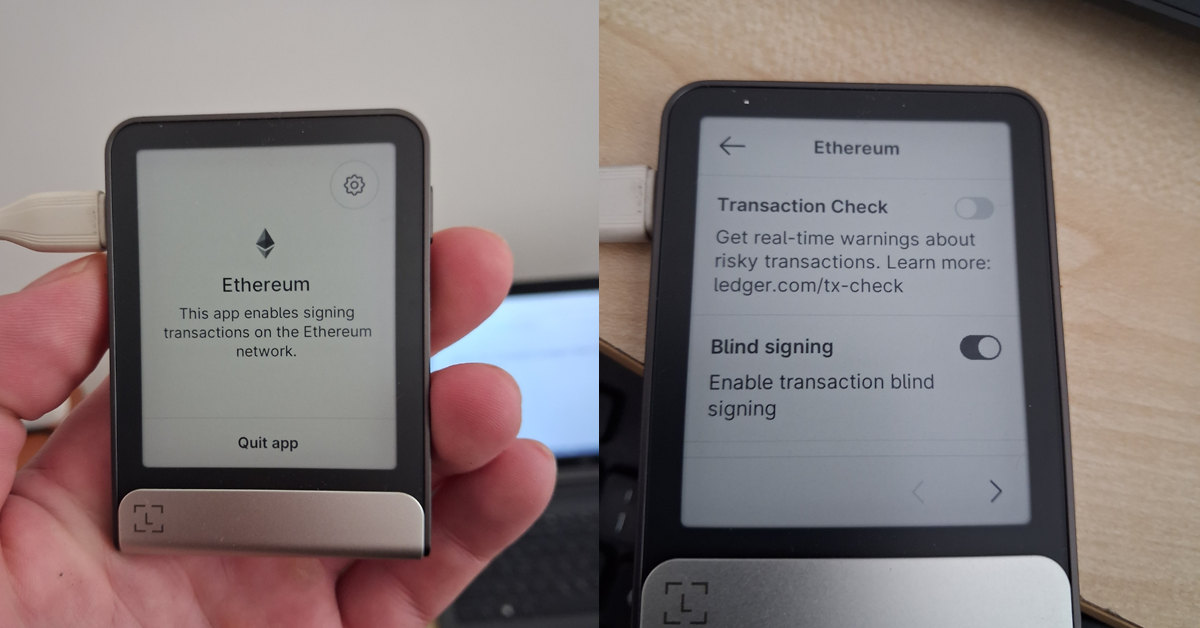

Connecting Ledger Flex to MetaMask allows you to securely manage BNB and BEP-20 tokens on BNB Chain while keeping your private keys protected inside your hardware wallet.
MetaMask acts as the interface for interacting with the BNB Chain network, while Ledger Flex signs every transaction directly on the device, adding an extra layer of security compared to regular software wallets.
In this guide, we’ll walk through the exact steps we used to connect Ledger Flex to MetaMask and use it with BNB Chain.
Helpful Guides for BNB Chain Users
If you’re exploring wallets and security tools for BNB Chain, these guides may also help:
- 6 Best Wallets for BNB Chain to Use in 2026 – An overview of popular software and hardware wallets for storing BNB and BEP-20 tokens.
- 7 Best Hardware Wallets for BNB Chain in 2026 – Our ranking of the most secure hardware wallets for protecting BNB Chain assets.
These guides explain which wallets support BNB Chain, DeFi platforms, and BEP-20 tokens, helping you choose the right setup for your needs.
Connecting Ledger Flex to MetaMask for BNB Chain
1. Connect your Ledger Flex to your computer.
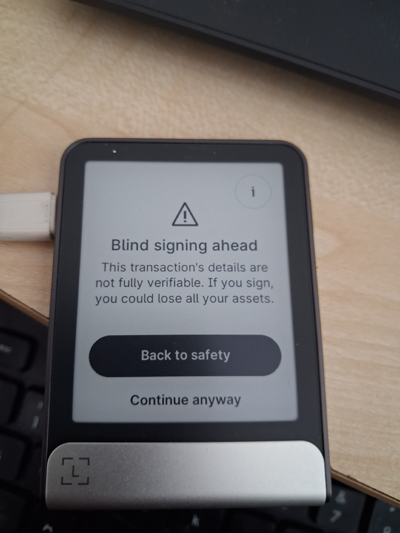
2. In Flex open Ethereum app, click Settings (top right) and enable Blind Signing.
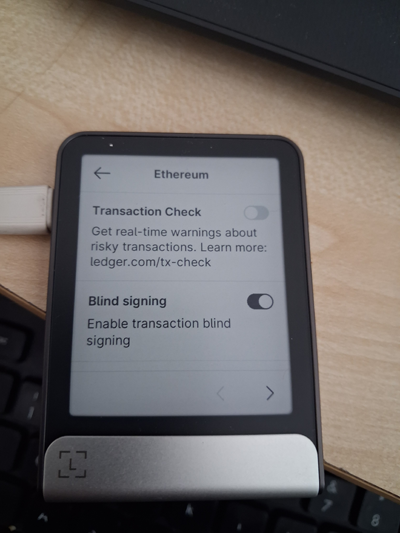
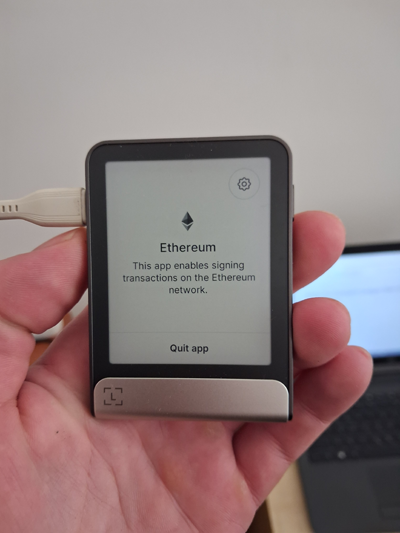
3. Make sure the Ethereum app remains open on your Flex device.
4. Install the MetaMask browser extension and follow the instructions to set up a regular wallet.
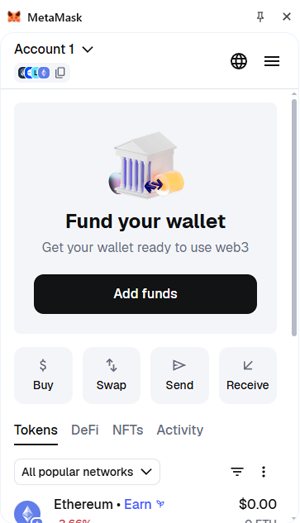
5. Click on the Accounts tab.
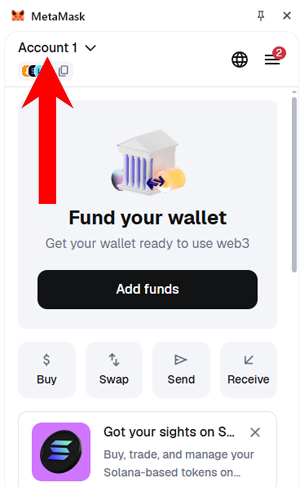
6. Choose Add wallet.
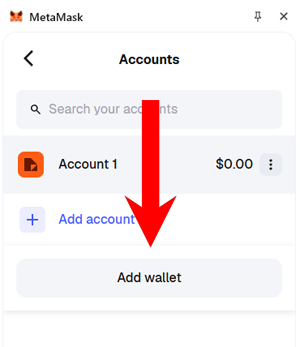
7. Click Add a hardware wallet.
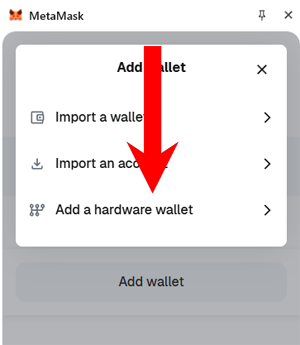
8. Select Ledger and click Continue.
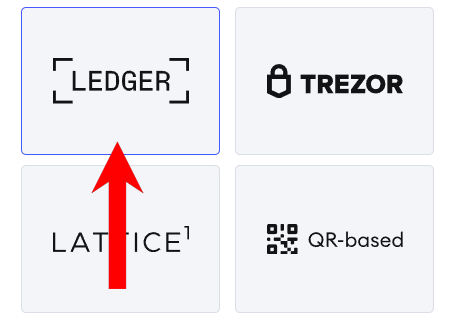
9. In the pop-up window select Flex to pair.
10. Select the Ledger accounts to export.
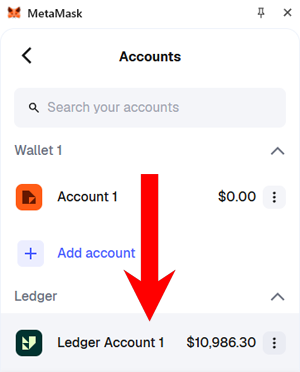
11. You will now see your Ledger in the Accounts tab, click on it.
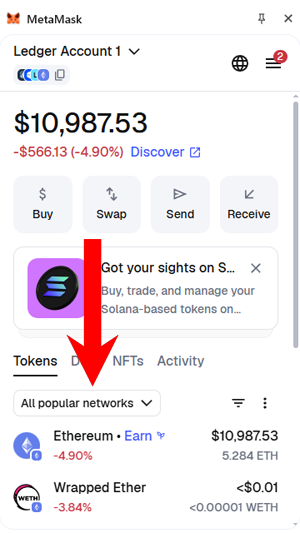
12. Click All popular networks and choose BNB Chain.
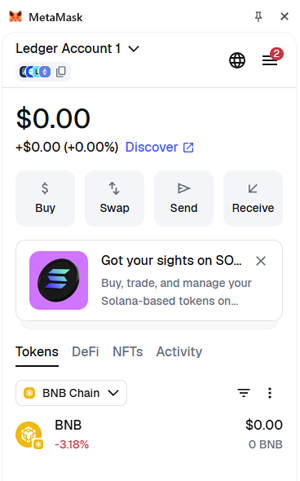
13. Always make sure to use BNB Chain for transactions.
Testing the MetaMask + Ledger Flex Setup
To make sure everything works correctly, we tested the setup with a real transaction.
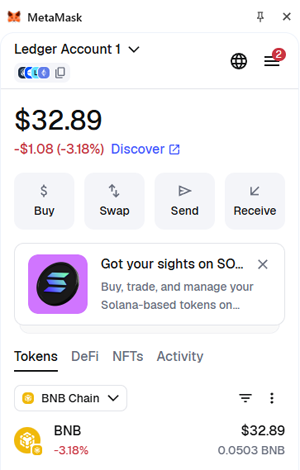
1. We sent around $30 worth of BNB to the wallet.
2. Next we went to PancakeSwap and connected the MetaMask wallet.
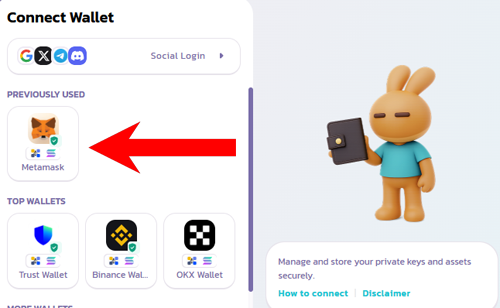
3. PancakeSwap showed the BNB balance correctly.

4. We swapped BNB for 1 CAKE.
5. A confirmation prompt appeared on the Ledger Flex, and we confirmed the transaction.
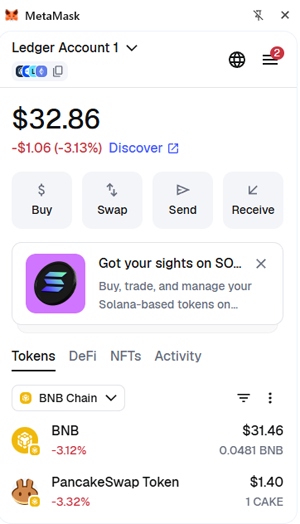
6. After the swap completed, the wallet showed 1 CAKE with the remaining BNB balance, confirming everything works smoothly with the MetaMask + Ledger Flex integration.
Explore More Wallet Setup Tutorials
If you’re learning how to connect hardware wallets and configure crypto wallets across different blockchain networks, you can browse our Crypto Wallet Tutorials and Setup Guides, where we publish step-by-step instructions for wallet integrations, staking setups, and network configuration.
