

If you want to use your Ledger Flex hardware wallet with Phantom, you can easily connect the device and manage your Solana assets through Phantom’s interface. This setup allows you to keep your private keys secured on the hardware wallet while still accessing the Solana ecosystem, staking features, SPL tokens, NFTs, and decentralized applications (dApps) through Phantom.
In this guide, we’ll show you how to connect Ledger Flex to Phantom on both desktop and mobile devices. The process only takes a few minutes and requires installing the Solana app on your Ledger device and pairing it with Phantom. If you’re looking for more similar guides, explore our Crypto Wallet Tutorials and Setup Guides.
If you’re comparing hardware wallets for storing SOL and other crypto assets, you may also want to check our guide on the 6 Best Hardware Wallets for Solana (SOL) in 2026, where we review the most secure options available.
Connect Ledger Flex to Phantom Wallet on Desktop
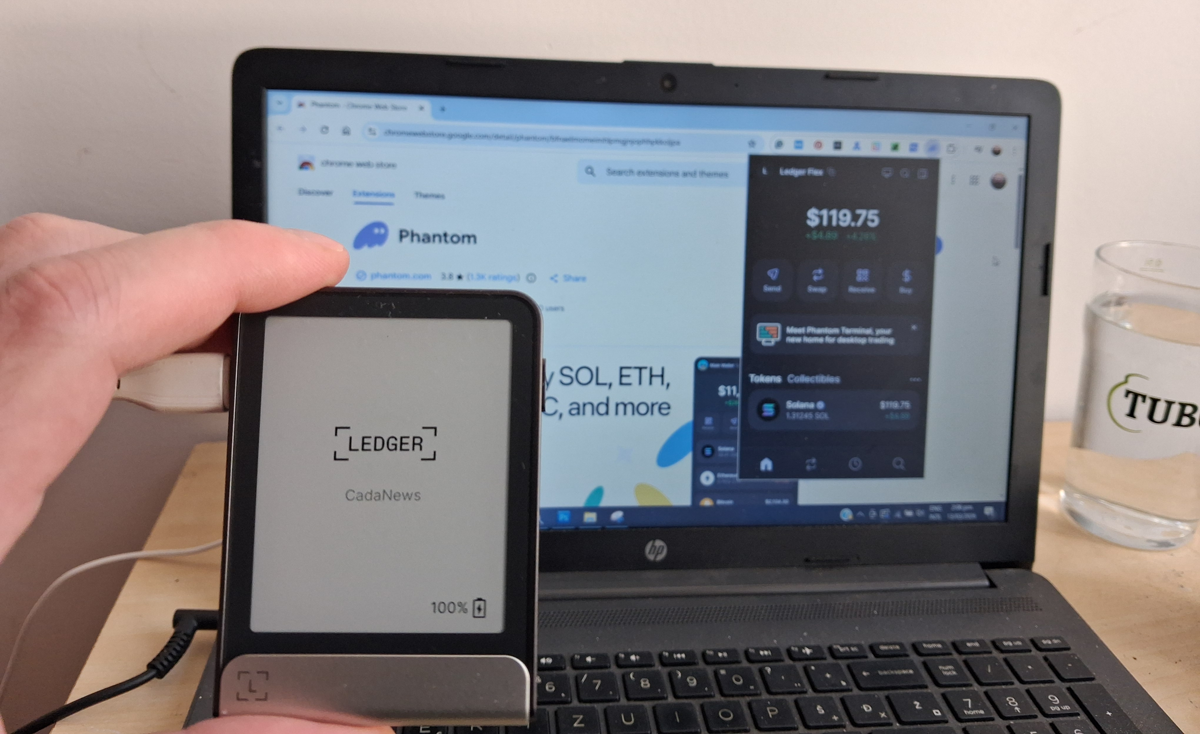
1. Make sure the Solana app is installed in Ledger Live. Once installed, it will appear on your Ledger Flex device like in the image below.

2. Install the Phantom browser extension for Chrome or another supported browser.
3. Connect your Ledger Flex to your computer and open the Solana app on the device.
4. Open Phantom and click “I already have a wallet.”

5. Select “Connect Hardware Wallet.”

6. In the pop-up window, choose Flex.
7. Phantom will display “Ledger Flex Connected,” but you still need to export your Ledger Solana accounts.
8. Select Solana as the network and click Continue.

9. hantom will detect available accounts, then click Continue to proceed.
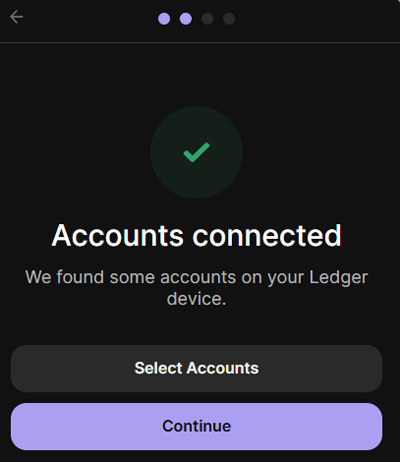
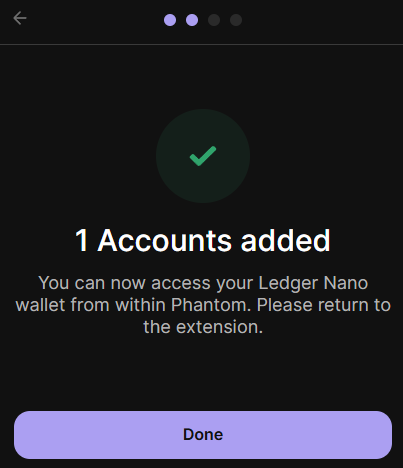
10. Your Ledger accounts will now be added to Phantom.
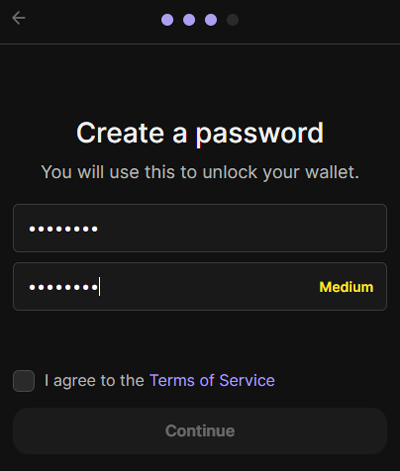
11. Create a password for your Phantom wallet.
12. Setup is complete. You can now use Phantom with Ledger Flex to manage SOL, SPL tokens, NFTs, stake SOL, and interact with Solana dApps. If you already had SOL stored on your Ledger device, the balance should now appear in Phantom.

Connect Ledger Flex to Phantom Wallet on Mobile
1. Make sure the Solana app is installed in Ledger Live, which will make it available on your Ledger Flex device.
2. On your Ledger Flex, go to Settings and enable Bluetooth.

3. Open the Solana app on the Ledger Flex.

4. Install and open the Phantom mobile app on your phone.
5. Tap “I already have a wallet.”

6. Select “Other Import Options.”

7. Tap “Connect Hardware Wallet.”

8. Click “Connect your Ledger device.”
9. Phantom will search for nearby devices, and you can tap your Ledger Flex to begin pairing.
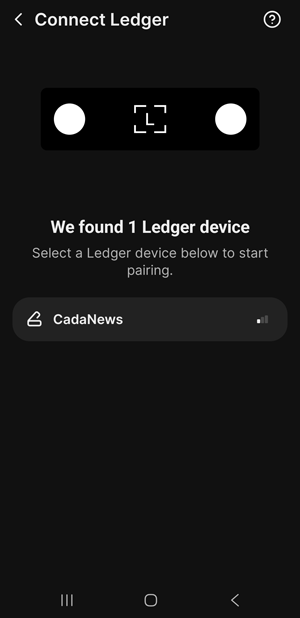
10. Confirm the pairing code displayed on your Ledger Flex.
11. Select Solana as the network.

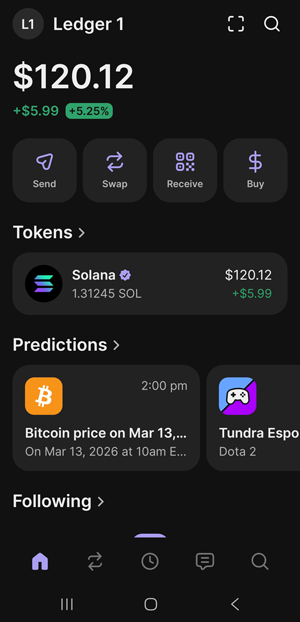
11. Phantom will detect and import your Ledger Solana account/s.
12. That’s it. You can now safely access and enjoy the Solana ecosystem.
If you are looking for other wallets that support the Solana ecosystem, see our guide to the 6 Best Solana (SOL) Wallets to Use in 2026.
